

Delivery & Pickup Scheduling — Documentation
This guide explains every setting in the plugin and how it behaves on WooCommerce checkout, orders, and customer rescheduling. Use this as a reference before enabling schedules on a live store.
Keep the demo site lightweight. Install only what you need for testing and compatibility checks.
1) Installation
Install & activate
- Go to WP Admin → Plugins → Add New → Upload Plugin.
- Upload the plugin ZIP, install, and activate.
- Open WooCommerce → Delivery Settings (plugin menu location may differ by build).
If uploads fail with “The link you followed has expired”, increase PHP upload limits (server-side).
2) Delivery Settings
Core controls
- Enable Delivery Scheduling: Turns delivery date/time selection on or off at checkout.
- Day Wise Delivery Cut-off: Set weekday-specific same-day cut-off times.
- Delivery Date: Label, Required (Yes/No), and Format.
- Delivery Time: Label and Required (Yes/No).
- Delivery Instructions: Label, Required (Yes/No), and Enable (Yes/No).
- Delivery Schedule Title: Label and Enable (Yes/No).
- Adjustment Fee: Fee label and discount label shown in order totals when slot has price adjustment.
Delivery Date — field meanings
| Field | Set in Admin | Shown on Checkout | What it does |
|---|---|---|---|
| Label | Delivery Settings → Delivery Date → Label | Field title above date input | Changes only the visible text (example: Delivery Date, Delivery Day, Preferred Delivery Date). |
| Required | Delivery Settings → Delivery Date → Required | Validation on place order | Yes = customer must select date. No = checkout can proceed without date. |
| Format | Delivery Settings → Delivery Date → Format | Date display in field and order meta | Controls output format (example: DD/MM/YYYY). Calendar logic remains date-safe; only display changes. |
Inside the WooCommerce checkout schedule box when Delivery is selected.
3) Pickup Settings
Pickup configuration
- Enable Pickup Scheduling: Turns pickup date/time selection on or off at checkout.
- Day Wise Pickup Cut-off: Weekday-specific same-day cut-off for pickup.
- Pickup Date: Label and Required (Yes/No).
- Pickup Time: Label and Required (Yes/No).
- Pickup Instructions: Label, Required (Yes/No), and Enable (Yes/No).
- Pickup Schedule Title: Label and Enable (Yes/No).
- Adjustment Fee: Fee/discount labels for pickup slot pricing.
Pickup rows — behavior
| Field Group | Set in Admin | What it does |
|---|---|---|
| Pickup Date | Pickup Settings → Pickup Date (Label + Required) | Label changes display text; Required controls mandatory validation. |
| Pickup Time | Pickup Settings → Pickup Time (Label + Required) | Controls slot selector text and required validation. |
| Pickup Instructions | Pickup Settings → Pickup Instructions (Label + Required + Enable) | Enable shows/hides field, Label changes title, Required controls validation. |
| Pickup Schedule Title | Pickup Settings → Pickup Schedule Title (Label + Enable) | Enable shows/hides heading; Label sets heading text. |
4) Advanced Rules
Advanced rules (inside Delivery / Pickup tabs)
No separate Advanced Rules tab. These controls live inside Delivery and Pickup settings.
| Field | What it controls | Example |
|---|---|---|
| Enable Advanced Rules | Master switch for all controls below. | Disabled = lead/max/filters/blackouts ignored |
| Delivery Lead Days | Minimum days from today before a delivery date can be selected. | 2 = today & tomorrow blocked |
| Delivery Max Booking Days | Maximum future booking window for delivery. | 15 = next 15 days allowed |
| Pickup Lead/Max Booking Days | Same rules for pickup schedule. | Lead 1, Max 10 |
| Recurring Holidays | Block selected weekdays every week (delivery/pickup separately). | Sunday selected = all Sundays blocked |
| Shipping Methods | Show Delivery/Pickup only for selected shipping methods. | Flat rate only / Local pickup only |
| Zones | Show Delivery/Pickup only for selected shipping zones. | Only India zone |
| Blackout Date Ranges | Block complete date periods. | 24-12-2026 to 31-12-2026 |
| Allowed Products / Categories | Show Delivery/Pickup only when cart matches filters. | Select Product A/B or specific category |
| Enable Customer Reschedule | Global switch for customer-side reschedule in My Account. | Enabled + order-level allow = customer can reschedule |
| Allowed Statuses | Customer can reschedule only for selected order statuses. | pending, processing, on-hold |
| Reschedule Pricing Mode | Controls how slot price changes affect order. | Keep original pricing (recommended) |
If a filter field is empty, that specific filter is not applied. Checkout validates these rules server-side.
5) Time Slots
Slot creation & pricing
Create slots with Name, For, Day, Start, End, Max Orders, and Price Adjustment.
| Field | Shown on Checkout | Meaning and behavior |
|---|---|---|
| Name | Before time range | Optional title. If empty, checkout shows only time range. |
| For | Slot visibility | All = visible for Delivery and Pickup. Delivery = only Delivery. Pickup = only Pickup. |
| Day | After date selection | All Days = available daily. Specific day = available only on that weekday. |
| Start / End | Time range | Defines slot window. End should be later than Start. |
| Max Orders | Availability control | Daily capacity per slot per schedule type. Once reached, slot becomes unavailable. |
| Price Adjustment | Order total impact | Positive adds fee, negative applies discount. Labels come from Delivery/Pickup settings. |
Slot display examples
- If Name is set:
Afternoon (12:00 PM - 4:00 PM) - If Name is empty:
9:00 AM - 12:00 PM
6) Holidays
Delivery holidays vs pickup holidays
Manage delivery and pickup holidays separately. These dates are blocked in the calendar UI and validated again on checkout submit.
| Field | Shown on Checkout | Meaning and behavior |
|---|---|---|
| Delivery Holidays | Delivery calendar only | Blocked only when customer selects Delivery. |
| Pickup Holidays | Pickup calendar only | Blocked only when customer selects Pickup. |
Holiday blocking is enforced server-side, so blocked dates cannot be bypassed using manual requests.
7) Calendar Sync (ICS)
Public feed, download, token regeneration
- Public ICS Feed URL: Use in Google/Apple/Outlook calendars.
- Download ICS Now: Export current schedule events as a .ics file.
- Regenerate Feed Token: Invalidate old feed links and generate a new secure URL.
8) Analytics
Summary view and order calendar view
- Summary: Date range + filters (Type, Status, Category, Shipping Method) → KPIs and tables.
- Order Calendar: Month navigation with operational filters and day-wise order view.
Calendar popup shows type, date, time slot, instructions, and relevant details.
9) Exports
CSV exports for reporting
Export schedule-level reporting data by date range and filters.
- Order number
- Customer details
- Delivery/Pickup type
- Date and time slot
- Instructions
- Amount adjustments
10) Notifications
Email + Admin Alerts + Manual Send + SMS Notifications
The Notifications tab contains 5 sub-tabs:
- Email Notifications
- Admin Alerts
- Send Alerts
- SMS Notifications
- SMS Gateway
| Sub-tab | Purpose | Key behavior |
|---|---|---|
| Email Notifications | Automatic customer emails. | Template status, subject, content, trigger rules (before/after, unit, value, scope). |
| SMS Notifications | Automatic customer SMS. | Template rules + per-template test SMS with gateway response output. |
| Admin Alerts | Daily summary emails to store admin. | Runs through WordPress cron; recommended to set server cron for reliability. |
| Send Alerts | Manual sending for selected orders. | Enter order IDs/numbers; email and SMS are separate actions. |
| SMS Gateway | Generic provider API support. | GET/POST, custom headers, templates, success keyword matching. |
11) SMS Gateway Setup
Method, URL, headers, templates, placeholders, test SMS
Standard placeholders: {phone}, {message}, {phone_json}, {message_json}
Custom aliases: {NACS_TECH_MOBILE}, {NACS_TECH_TEXT}, {NACS_TECH_MOBILE_JSON}, {NACS_TECH_TEXT_JSON}
Validation rules
- GET: query template must contain
{phone}and{message} - POST: body template must contain
{phone}/{message}OR JSON variants
Template examples
- GET Query:
User=abc&Password=xyz&Number={phone}&Text={message} - POST form-urlencoded:
phone={phone}&message={message} - POST JSON:
{"Number":{phone_json},"Text":{message_json}}
Use “Send Test SMS” inside the template form. It returns HTTP status, response body, and transport error (if any).
12) Rescheduling
Customer vs admin reschedule + pricing mode
- Admin can reschedule from order edit.
- Customer reschedule requires global enable + order permission + allowed statuses.
- Reschedule Pricing Mode controls whether pricing changes are kept or recalculated.
Recommended mode for most stores: Keep Original Pricing.
13) Cron
Reliable scheduling for alerts and automation
Automatic email/SMS notifications and admin alerts run through WordPress cron. On low-traffic sites, configure a real server cron.
Use a server cron to call WP-Cron every 5 minutes for reliable triggers.
14) Troubleshooting
Common issues checklist
Date unexpectedly blocked
- Check Holidays, Recurring Holidays, Blackout Ranges
- Check Lead/Max limits
- Check Day-wise Cut-off
Delivery/Pickup option not showing
- Enable switch ON
- Shipping method filter / Zone filter
- Allowed products/categories filters
- Enable Advanced Rules (if using rules)
SMS not sent
- Verify Gateway URL, method (GET/POST), headers
- Ensure required placeholders are present
- Verify success keyword (if configured)
Screenshots
Add screenshots here for faster understanding. Replace placeholder boxes with WordPress images.
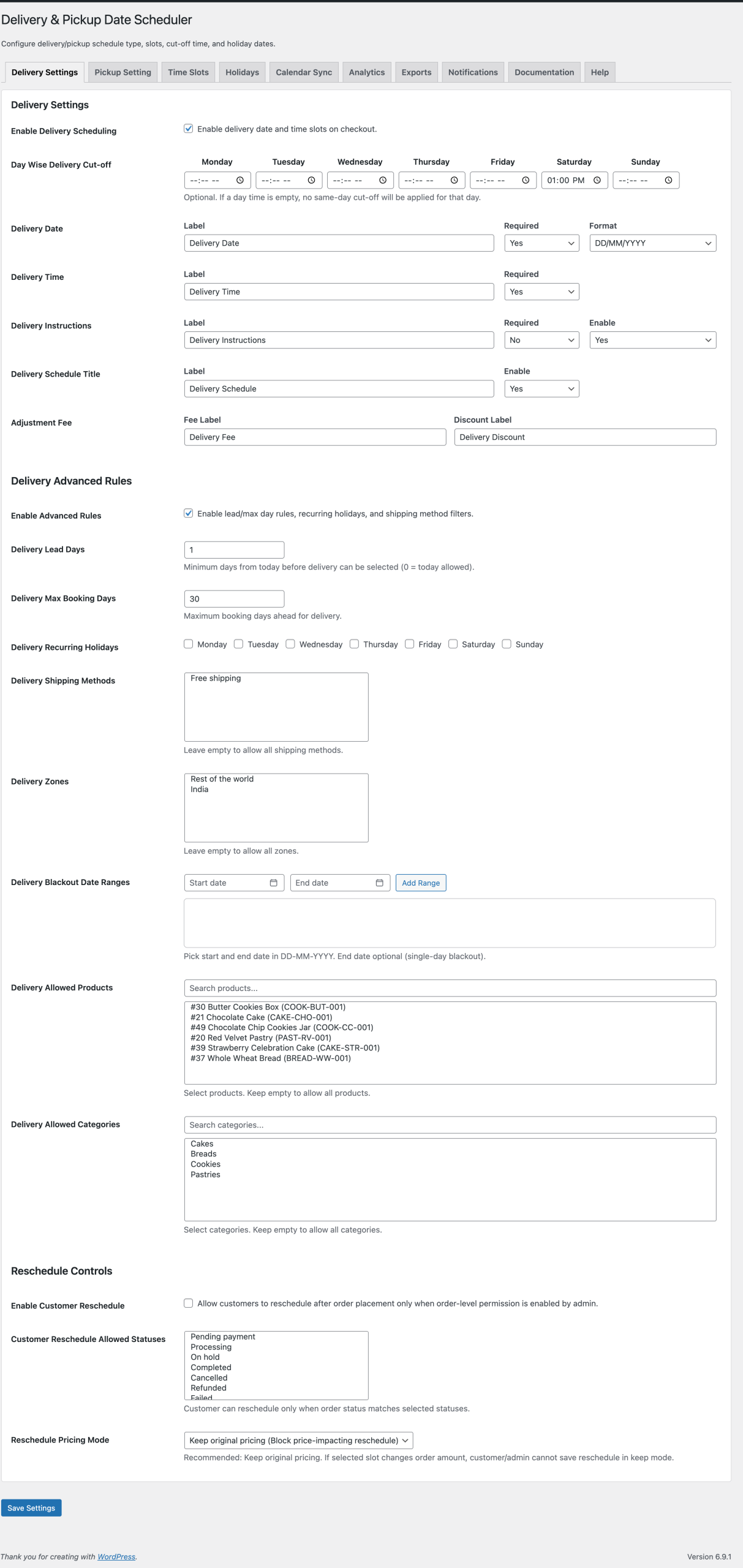
Delivery Settings — show enable toggle, delivery date/time rows, cut-off controls.
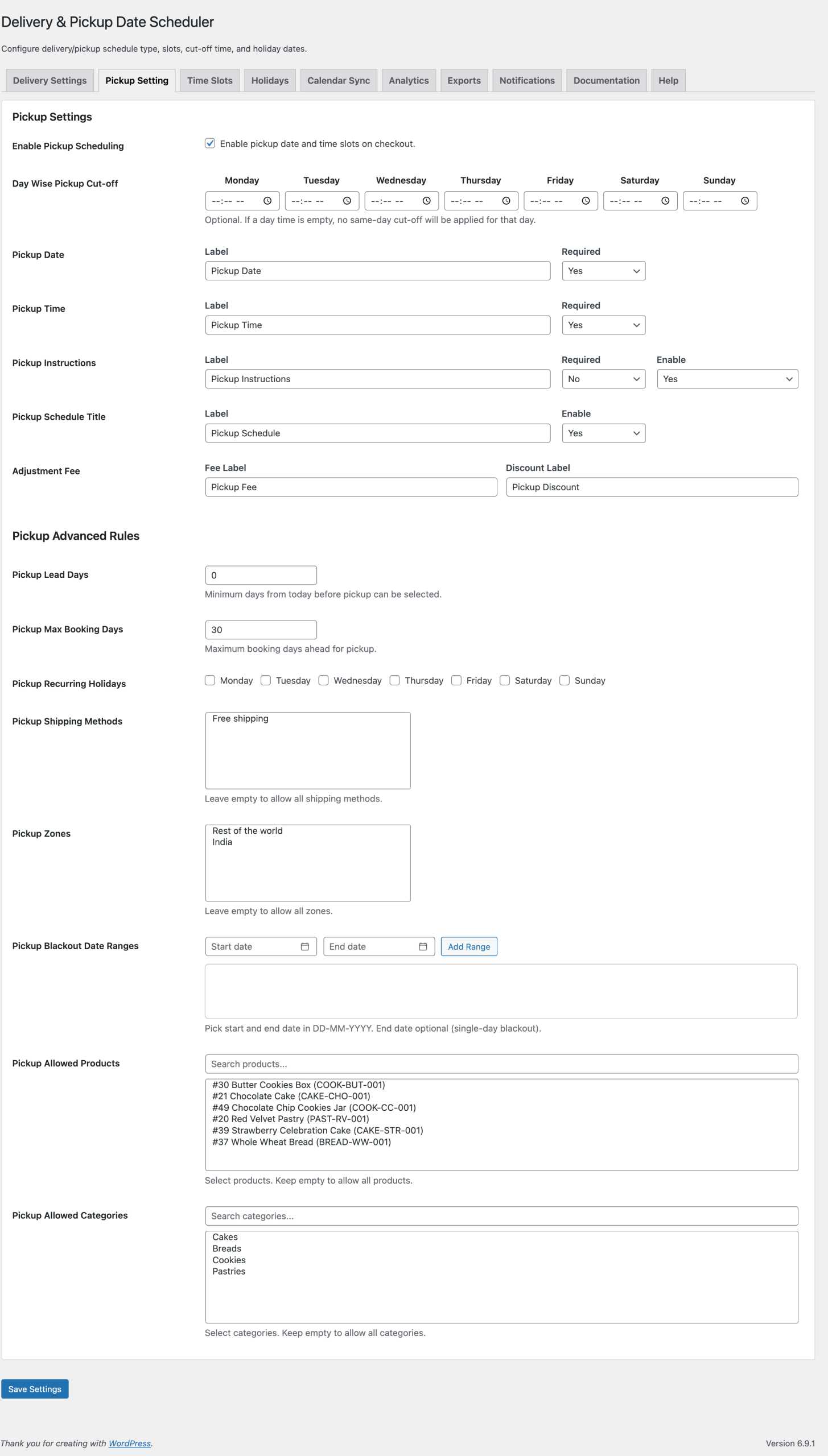
Pickup Settings — show pickup date/time + instructions + title.
Time Slots — show slot table with name, day, max orders, price adjustment.
Checkout UI — show delivery vs pickup switch + calendar + slots.
Analytics — show summary KPIs and order calendar popup.
Notifications — show email/SMS templates + SMS gateway settings.
Use the plugin “Help” tab or contact info@nacstech.in with your checkout scenario and expected behavior.